












I Bolted a Foot Pedal to My Desk for Hands-Free AI Prompting, and I'm Not Going Back
A workstation nerd's favorable take on using a foot pedal plus voice dictation to prompt AI hands-free: the setup, the software, the pedals, and why it's a genuine upgrade.
Let me tell you about the cheapest, weirdest upgrade my desk has seen in years. It sits on the floor, it costs less than a decent keycap set, and it has quietly changed how I work with AI every single day. It's a foot pedal. And once you pair it with voice dictation, prompting an AI model stops feeling like typing and starts feeling like thinking out loud.
I was skeptical too. Stay with me.
The problem with typing at your AI
Here's the thing nobody tells you when you get deep into AI tools: your bottleneck is your hands. You have a model on the other end that can read a paragraph in milliseconds, and you're feeding it one careful sentence at a time, backspacing, rephrasing, trimming. The conversation moves at the speed of your fingers.
Speaking is just faster. Comfortably faster, in the "roughly three times the words per minute" range for most people. But raw speed isn't even the best part. When I talk to a model instead of typing, I tend to give it more context up front, because rambling is cheap when you're talking. More context means a better first answer, which means fewer follow-up rounds. The whole loop tightens.
And there's a quieter benefit I care about a lot. If your wrists are cooked from a decade of keyboards, or you deal with RSI, or typing is just physically taxing, voice turns a chore back into something easy. That's not a niche perk. That's the difference between finishing your work comfortably and pushing through discomfort.
So why the pedal?
Because dictation on its own is fiddly. You need a clean way to say "start listening" and "stop listening" without breaking your flow, and reaching for a hotkey combo with your hands defeats the entire point.
Your feet, meanwhile, are just sitting there doing nothing.
The setup is beautifully dumb in the best way: press and hold the pedal, and it fires a hotkey that wakes up your dictation software. You talk. The software transcribes and drops the text right where your cursor is. Lift your foot, recording stops. That's the whole ritual. Push, talk, release. Your hands never leave the keyboard, so you can talk out a prompt and then immediately edit the result without switching modes in your head.
Once your foot learns the motion, you stop thinking about it entirely. It becomes as automatic as pressing a car pedal.
Picking your dictation software
The pedal is just a trigger. The magic actually lives in the transcription software, and you've got good options at every price point.
- Wispr Flow runs in the cloud, has a free tier to get you going, and steps up to a subscription in the low-teens per month. It's the easy on-ramp and it's genuinely polished.
- Superwhisper processes everything locally on a Mac. It's a heftier one-time purchase, but you pay once and nothing you say leaves your machine.
- VoiceInk is the open-source, local-first pick. Cheap, private, and hackable if that's your thing.
- Your operating system's built-in dictation costs nothing and is right there today. It's the weakest on technical vocabulary and code, but it's a perfect way to test whether this workflow clicks for you before you spend a cent.
My honest advice: start with the free option you already have, prove to yourself that hands-free prompting is worth it, then upgrade to something that handles your jargon well. Which brings me to the one thing people get wrong.
The mic matters more than the software
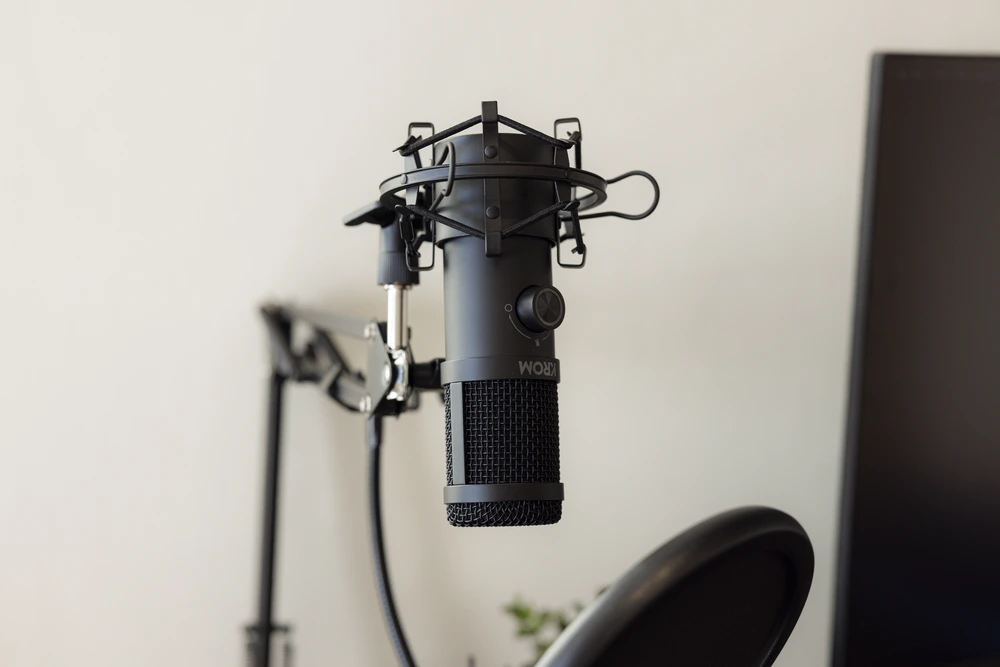
Everyone obsesses over which transcription app to buy and then talks into a laptop mic across the room. Transcription accuracy lives and dies on input quality. A decent dedicated microphone or a good headset will do more for your accuracy than jumping between apps ever will. If you already own a workstation-grade mic for calls, you're most of the way there.
Also worth knowing before you dive in: models still stumble on dense jargon, acronyms, and spoken-out code. You'll clean up transcripts sometimes. It's a small tax, and it shrinks fast as the tools improve and as you learn to enunciate the weird words.
Choosing the pedal itself
This is where it gets fun, because pedals run a huge range.
- A generic USB pedal costs about the same as a couple of coffees. Single button, plug and play, does exactly one job. If you just want to try the concept, buy the cheap one. Zero regret.
- A dictation-branded pedal like the Wispr Pedal sits at the premium end, goes wireless over Bluetooth, and is tuned to work hand-in-glove with its companion app.
- A multi-button controller like the Stream Deck Pedal is the one I'd point a fellow desk-tinkerer toward. Three pedals instead of one, swappable springs so you can dial in how firm each press feels, and app-aware profiles that change what the pedals do depending on what's focused on screen. So the left pedal can push-to-talk your AI, the center can submit, and the right can do... whatever your workflow craves. It plugs into the same ecosystem of plugins your streamer friends already love, except you're using it to ship work.
For a workstation person, that programmability is the whole game. A pedal that only does one thing is neat. A pedal that becomes a third hand for your most-repeated actions is a permanent fixture.
Do you even need one?
Fair question, and I'll be straight with you: no, you don't strictly need a pedal. You can bind dictation to a keyboard shortcut and never touch the floor. Plenty of people are happy there.
But the pedal solves a real, specific annoyance, which is that your hands are busy being hands. They're on the keyboard editing, on the mouse selecting, mid-gesture. Offloading the "listen now" trigger to your foot keeps both hands on the actual work. That separation is subtle until you feel it, and then it's hard to give up.
We drank our own coffee on this one
This isn't a workflow we read about and repackaged. The team here at RentRemote has been running foot-pedal dictation at our own desks for a while now, and it stuck. Enough of us are prompting AI with our feet that it quietly became part of how we work, which is usually the signal that something is more than a gimmick.
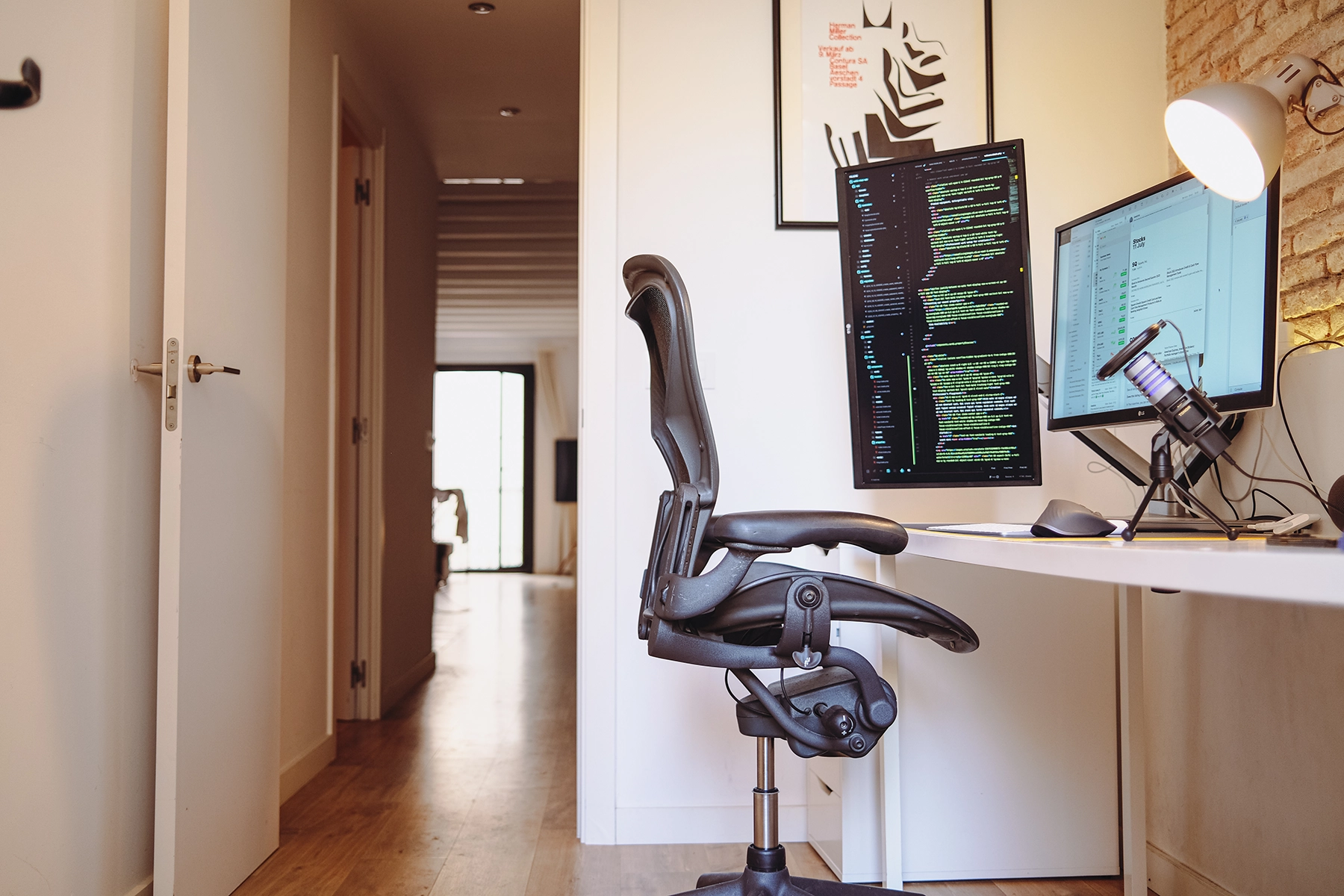
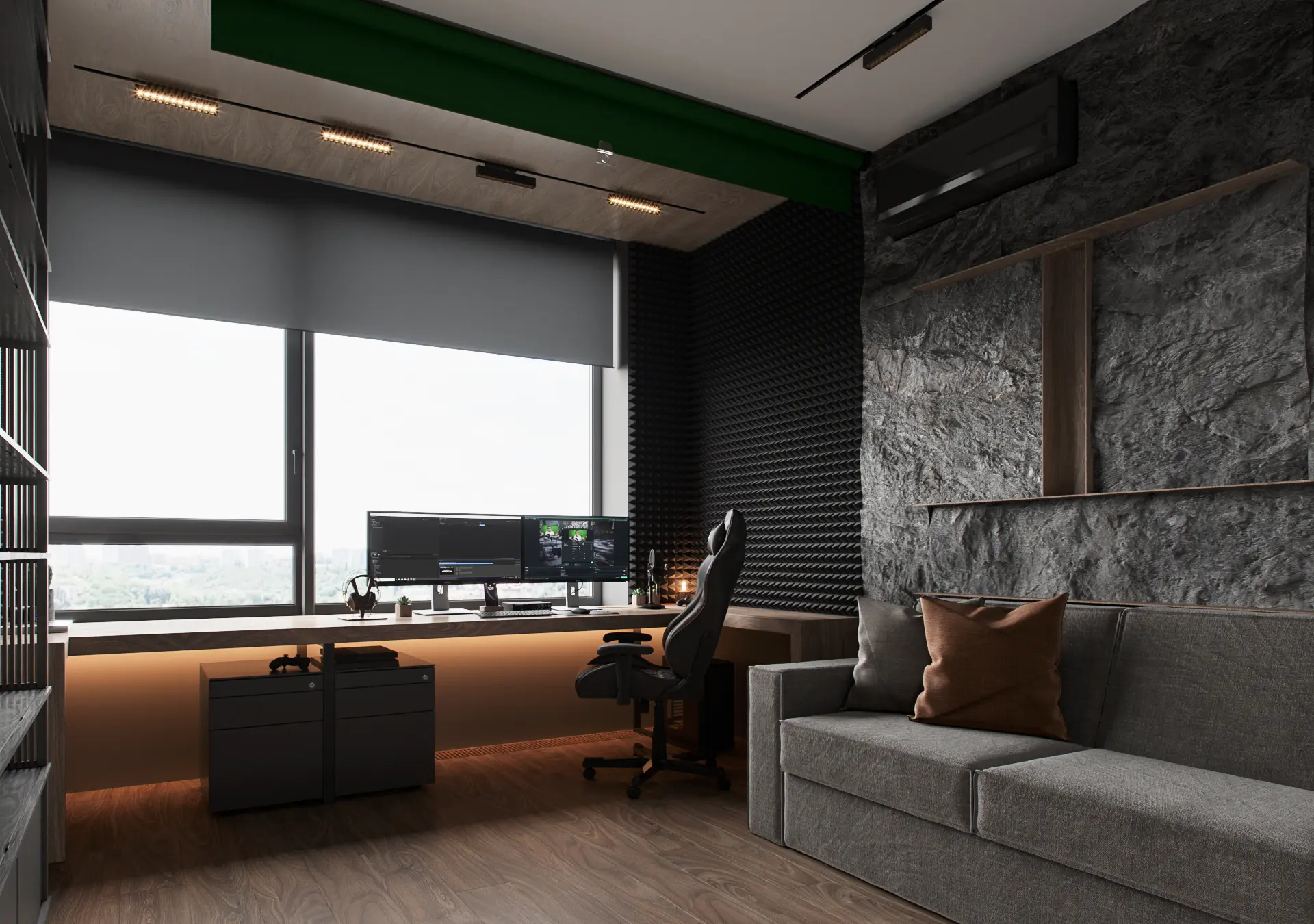
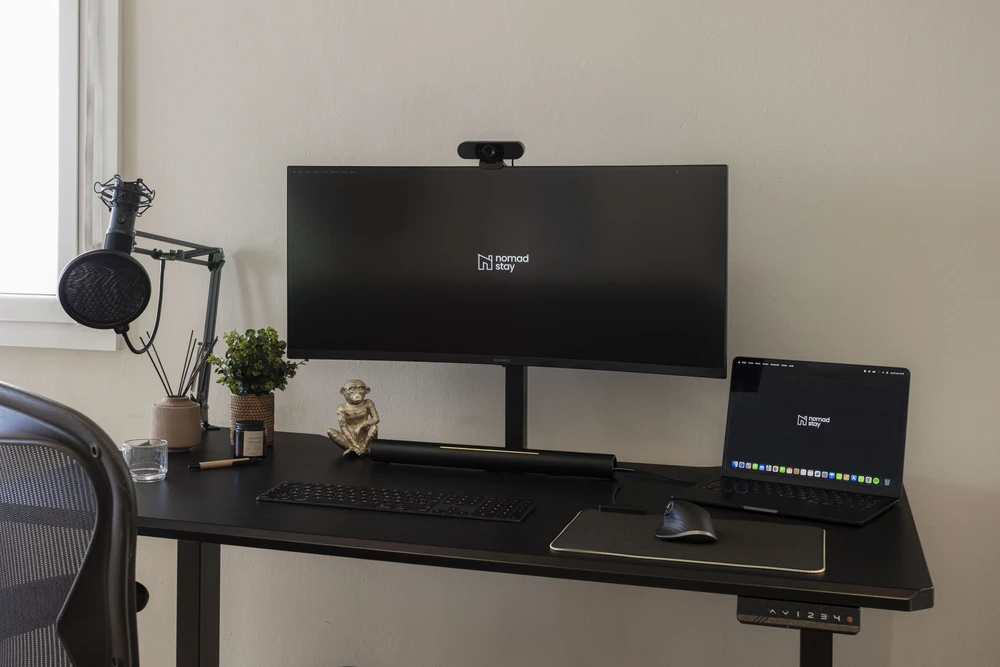
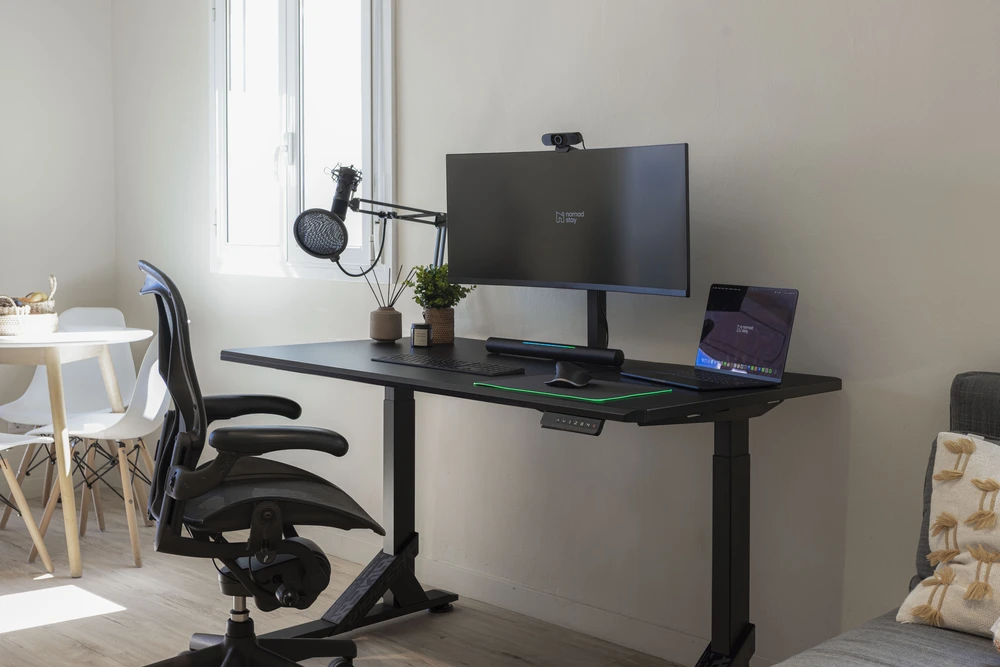
So we did the obvious next thing: we started building it into the workstations inside our properties. The whole point of a RentRemote workstation is that you walk in, sit down, and everything a remote professional actually needs is already there and dialed in, no unboxing, no trip to a store in a city you just landed in. A push-to-talk pedal wired to good dictation software fits that promise perfectly, and it's the kind of detail that turns a nice desk into a setup you don't want to leave.
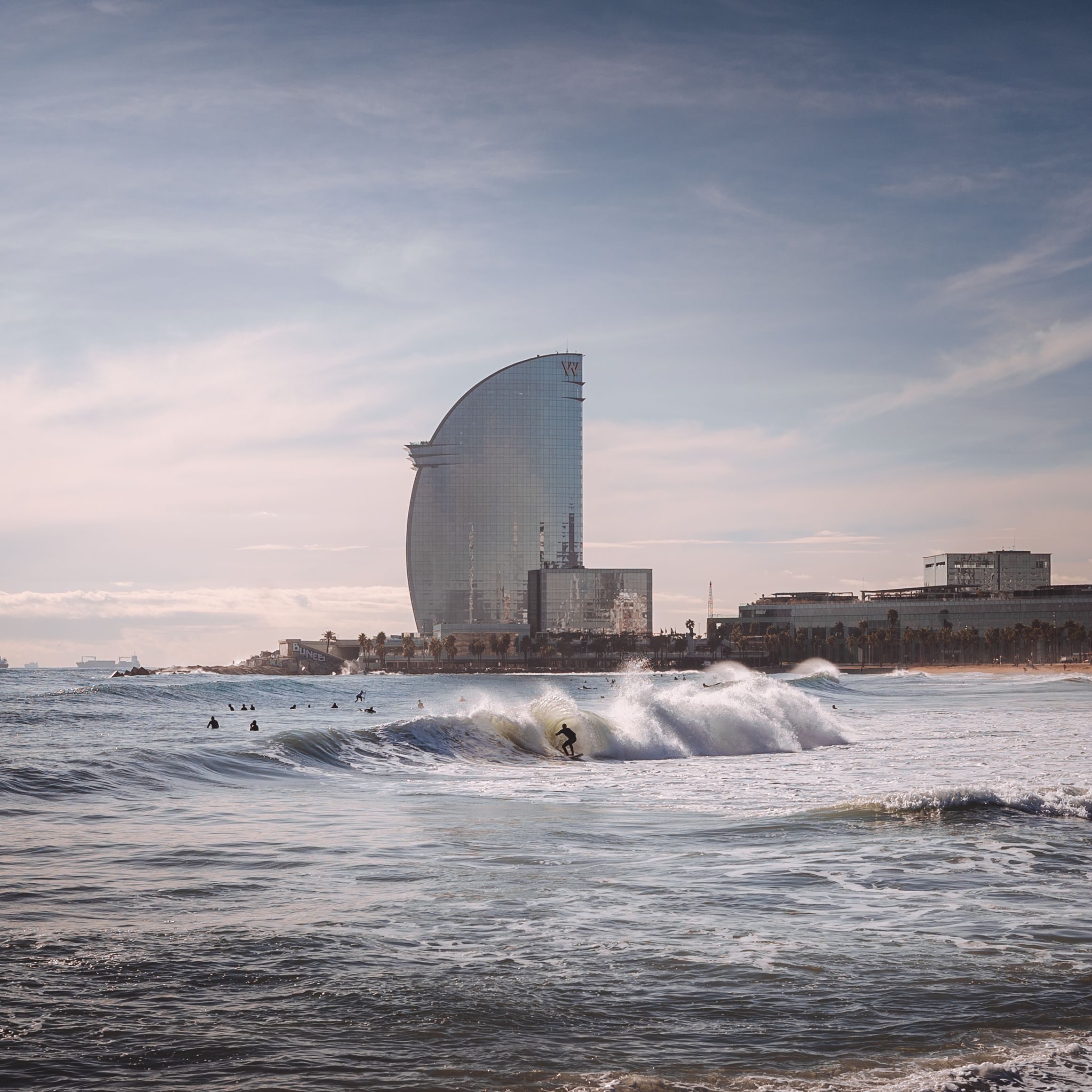
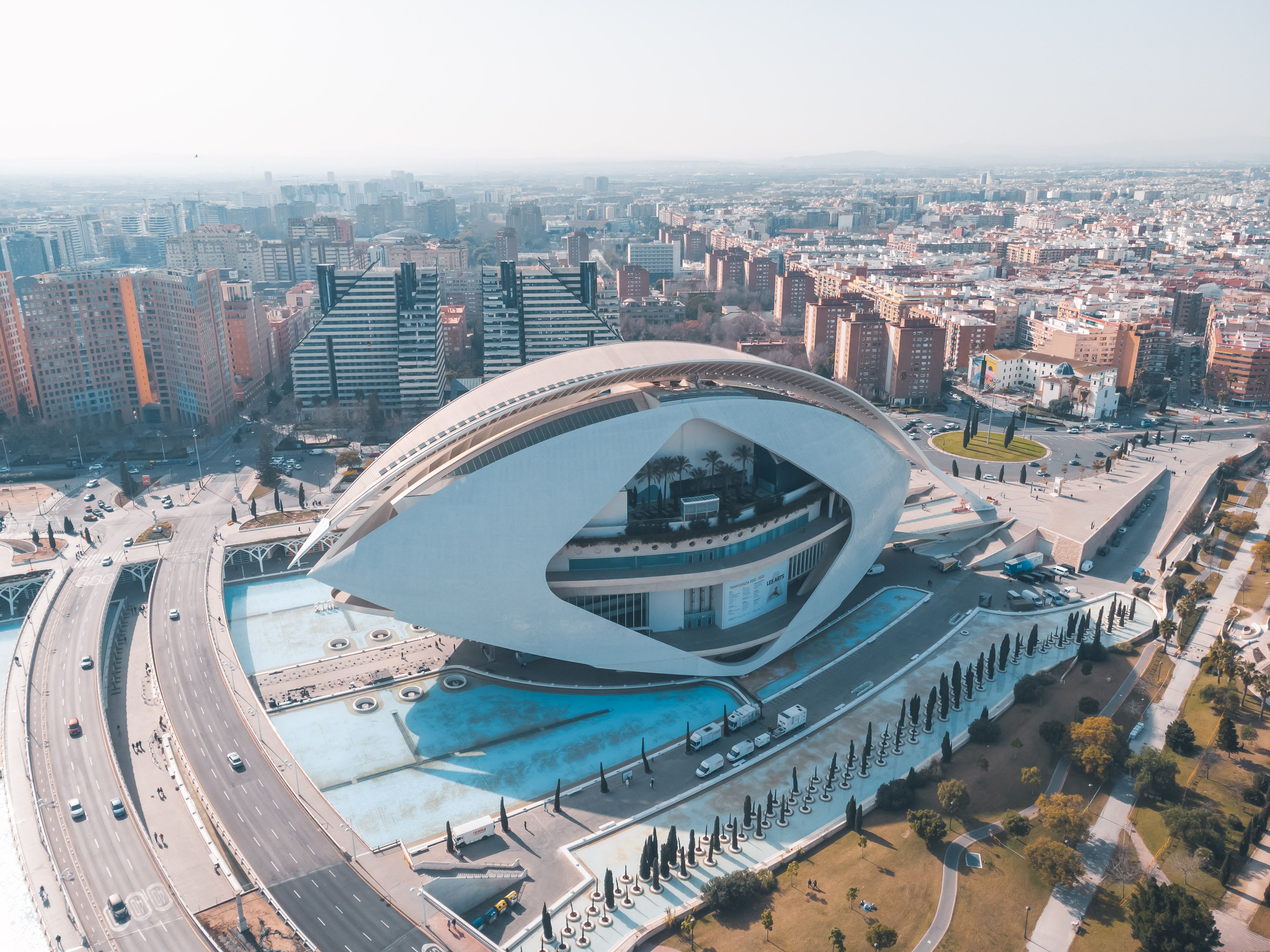
Practically, that means you can land in a furnished apartment in Lisbon, a place in Barcelona, or a stay in Mexico City, and be prompting your AI hands-free the same afternoon you drop your bags. No pedal in your luggage, no software rabbit hole on day one. If a fully-equipped workstation matters to your stay, look for it on the property page or just ask us.
Getting started this week
You don't need to buy anything to begin. Turn on your OS dictation, bind it to a hotkey, and spend a day prompting your AI by voice with your hands doing the trigger. Feel out whether talking-to-think suits you.
If it clicks, grab a cheap USB pedal and wire it to that same hotkey. If you fall for it the way I did, graduate to a programmable multi-pedal and start mapping your whole workflow to your feet.
Total cost to find out if this is for you: zero. Total cost to live in it comfortably: less than most people spend on a keyboard. And if you'd rather skip the shopping entirely, that's exactly the kind of thing we're baking into our workstations. For anyone who spends their day in conversation with AI models, from a home office or a furnished apartment halfway across the world, this is one of those rare upgrades that pays for itself in the first afternoon.
Your feet have been idle this whole time. Put them to work.