














Before You Book: How to Check an Apartment’s Remote Work Setup
Check apartment internet, monitor compatibility, desk space and call privacy before committing to a monthly remote work stay.
A listing says “fast Wi-Fi” and shows a laptop on a desk. Is that enough to commit to six weeks of working there?
For someone taking a holiday with occasional emails, it might be. For someone presenting to clients, uploading video or working across several applications all day, important questions remain unanswered.
The most useful way to assess an apartment is to describe your working day first, then check whether the space can support it. Here is how to turn a promising listing into an informed decision.
Start with the work you actually do
Before comparing properties, write a short work brief. Include your main tasks, equipment and anything that would make the apartment unsuitable.
For example:
“I work from 9 am to 6 pm, have three video meetings most days and use an external monitor for spreadsheets. I need a private place for calls and a screen that connects to my laptop.”
A video editor’s brief would look different: large uploads, local storage, a particular display connection and enough desk space for additional equipment.
This brief gives the person answering your enquiry something concrete to verify. “Is it good for remote work?” invites a general answer. “Can you confirm the monitor connection and provide an internet test taken at the desk?” produces information you can use.
Read the internet test beyond the download number
Download speed tells you how quickly information reaches your device. Upload speed matters when you send video, transfer files or share work with colleagues.
Zoom’s published guidance, for example, recommends 3.8 Mbps upload and 3.0 Mbps download for 1080p video. Those figures concern that activity; they are not a recommendation for an entire household’s internet connection.
Other devices, simultaneous calls and background transfers also use bandwidth. A connection should have room for the way you intend to use it.
Ask for a recent test taken inside the apartment, ideally where you will work. A result measured beside the router may not represent the connection in a bedroom at the other end of the home.
Useful questions include:
- Was the test taken over Wi-Fi or Ethernet?
- Is the connection private to the apartment or shared across several units?
- Where is the router in relation to the desk?
- Have there been recurring connection problems?
- Is an Ethernet connection available at the workspace?
A speed test is a snapshot, so avoid treating one impressive number as a guarantee of uninterrupted service.
Check that the monitor will work with your laptop
“External monitor available” leaves several practical details open.
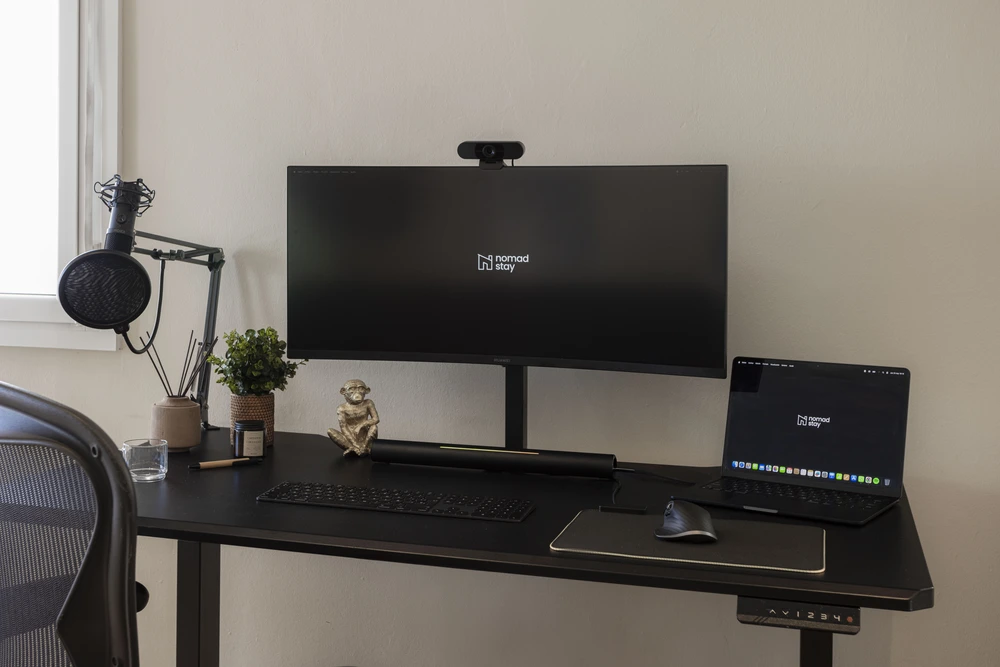
Confirm the monitor’s model or specifications, its available inputs and which cable is supplied. Then check whether your laptop supports that connection directly or requires an adapter.
A USB-C connector alone does not establish that a port or cable carries video. Likewise, a monitor connection does not necessarily charge your laptop.
If you normally use two external displays, verify that your laptop and any dock support the intended setup. Do this before deciding which equipment to leave at home.
A useful confirmation is specific: “One monitor with HDMI input and an HDMI cable supplied.” You can then check your own laptop against that information.
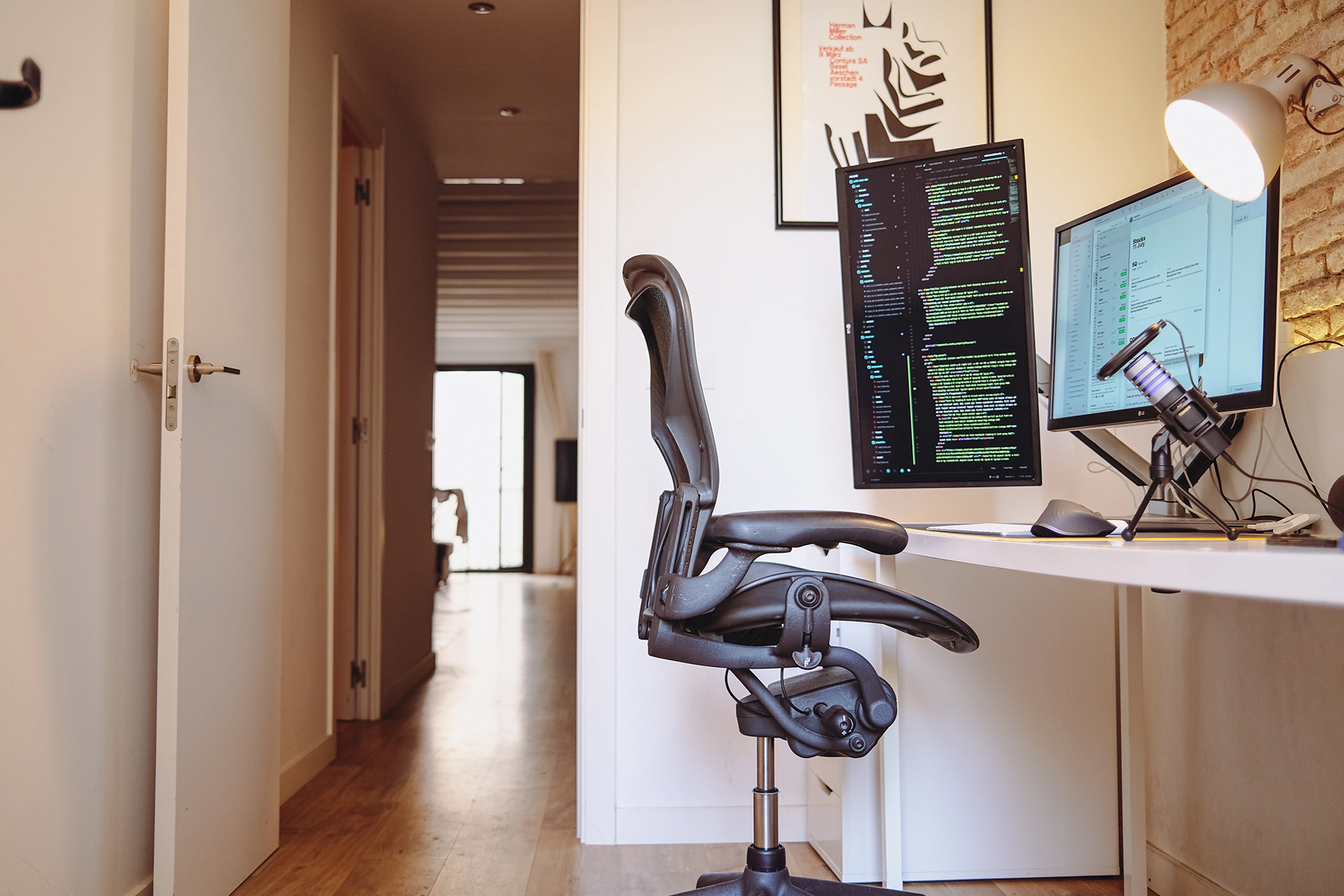
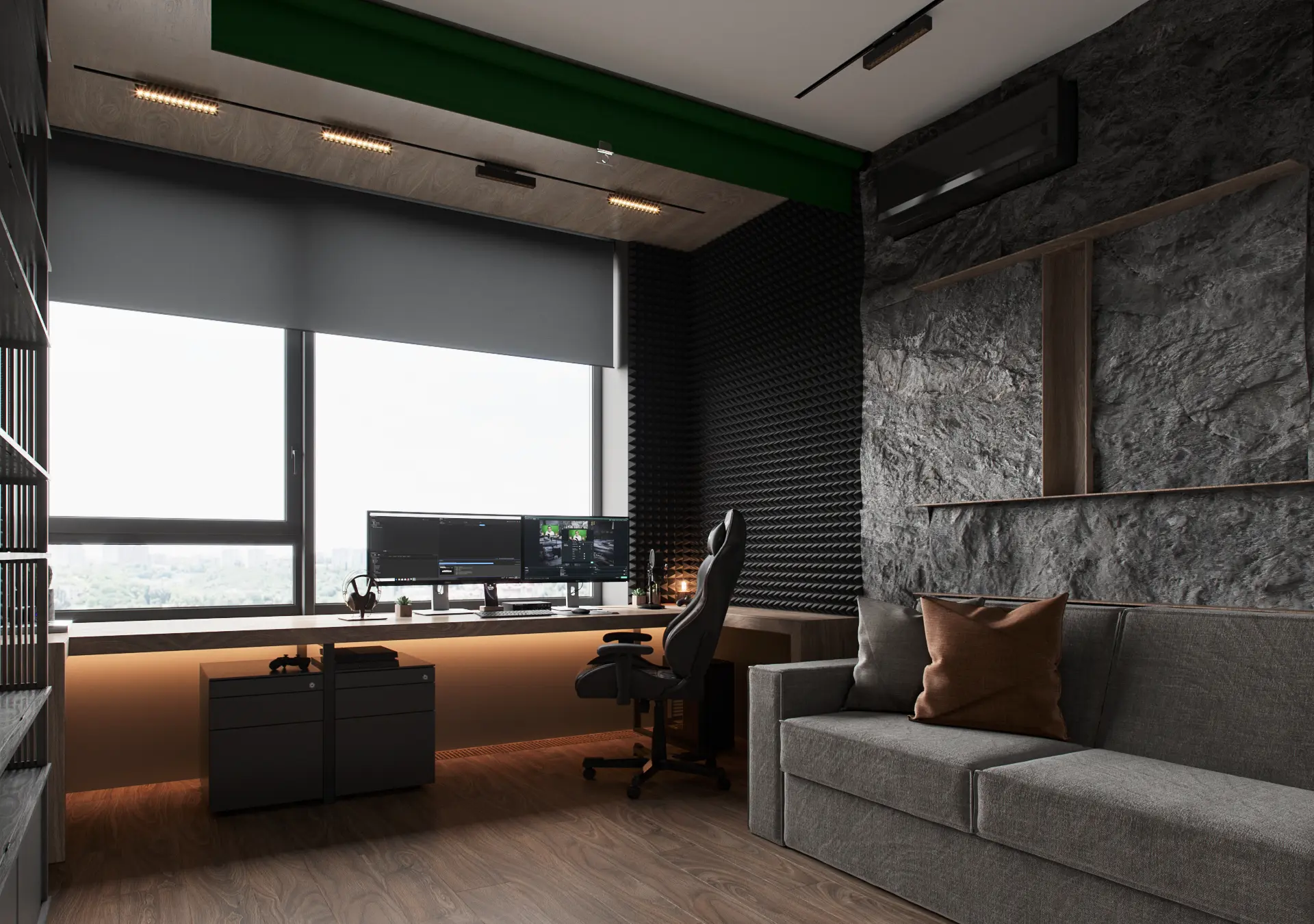
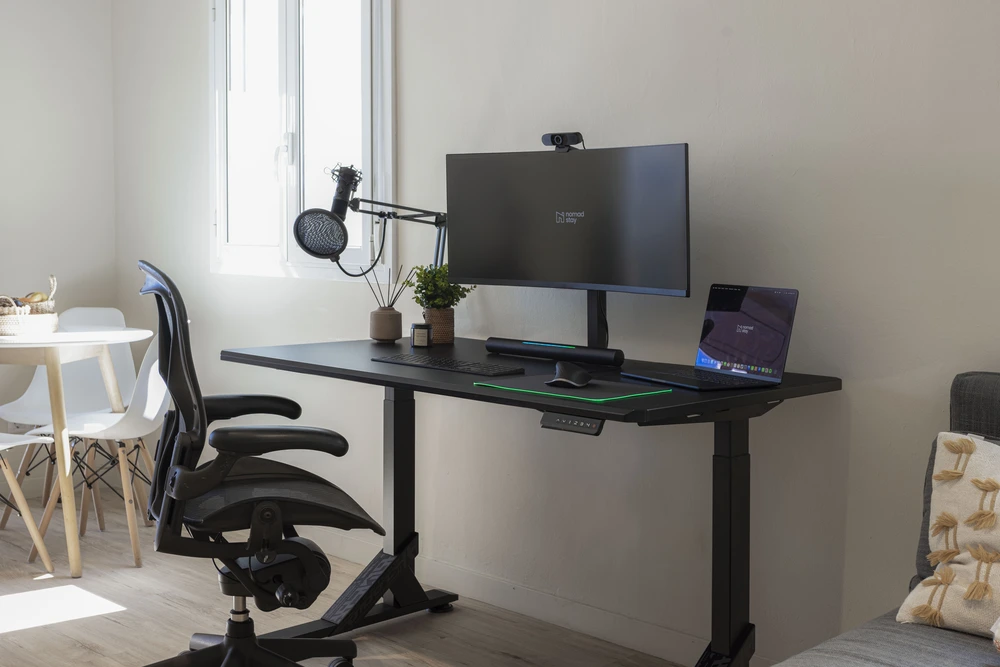
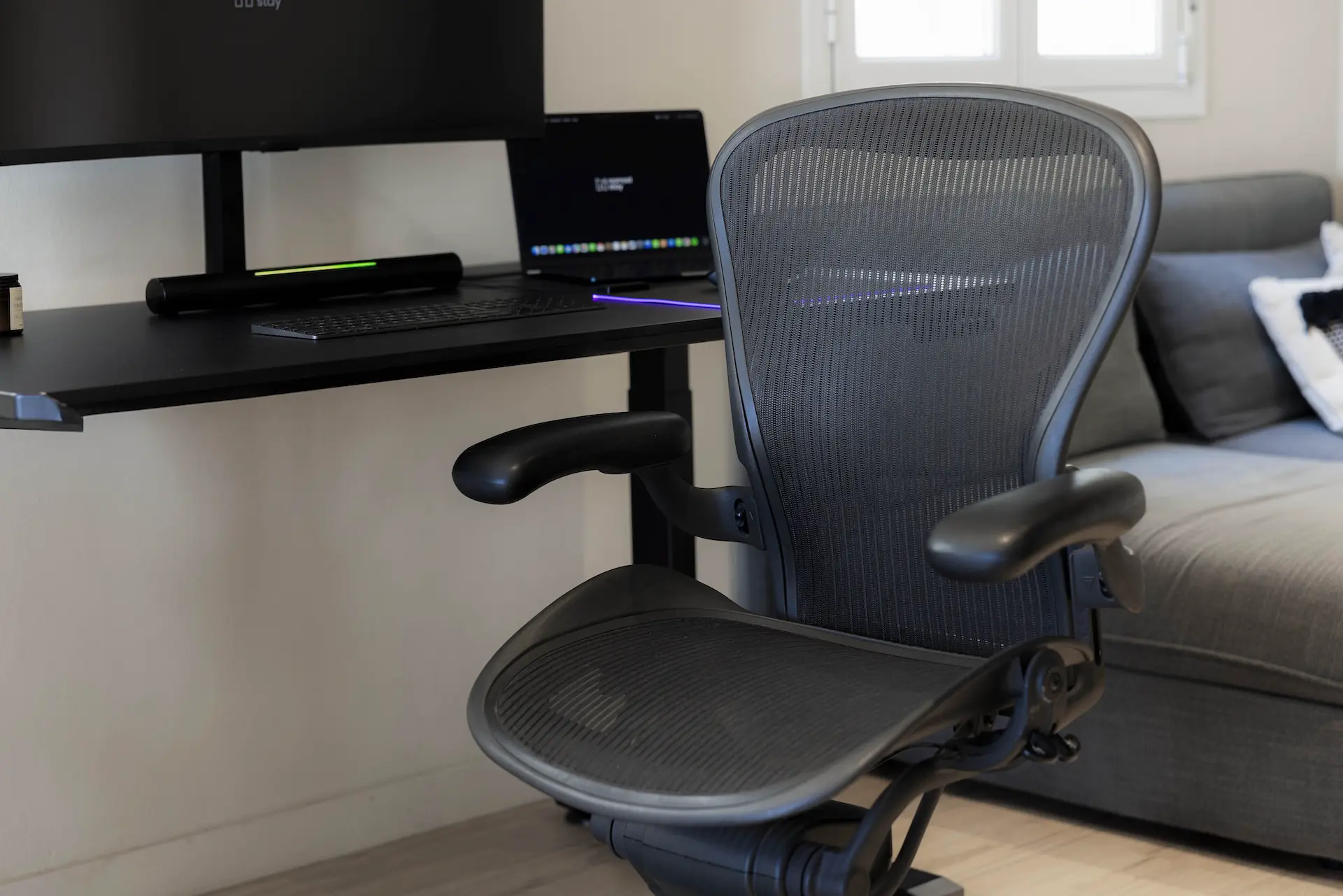
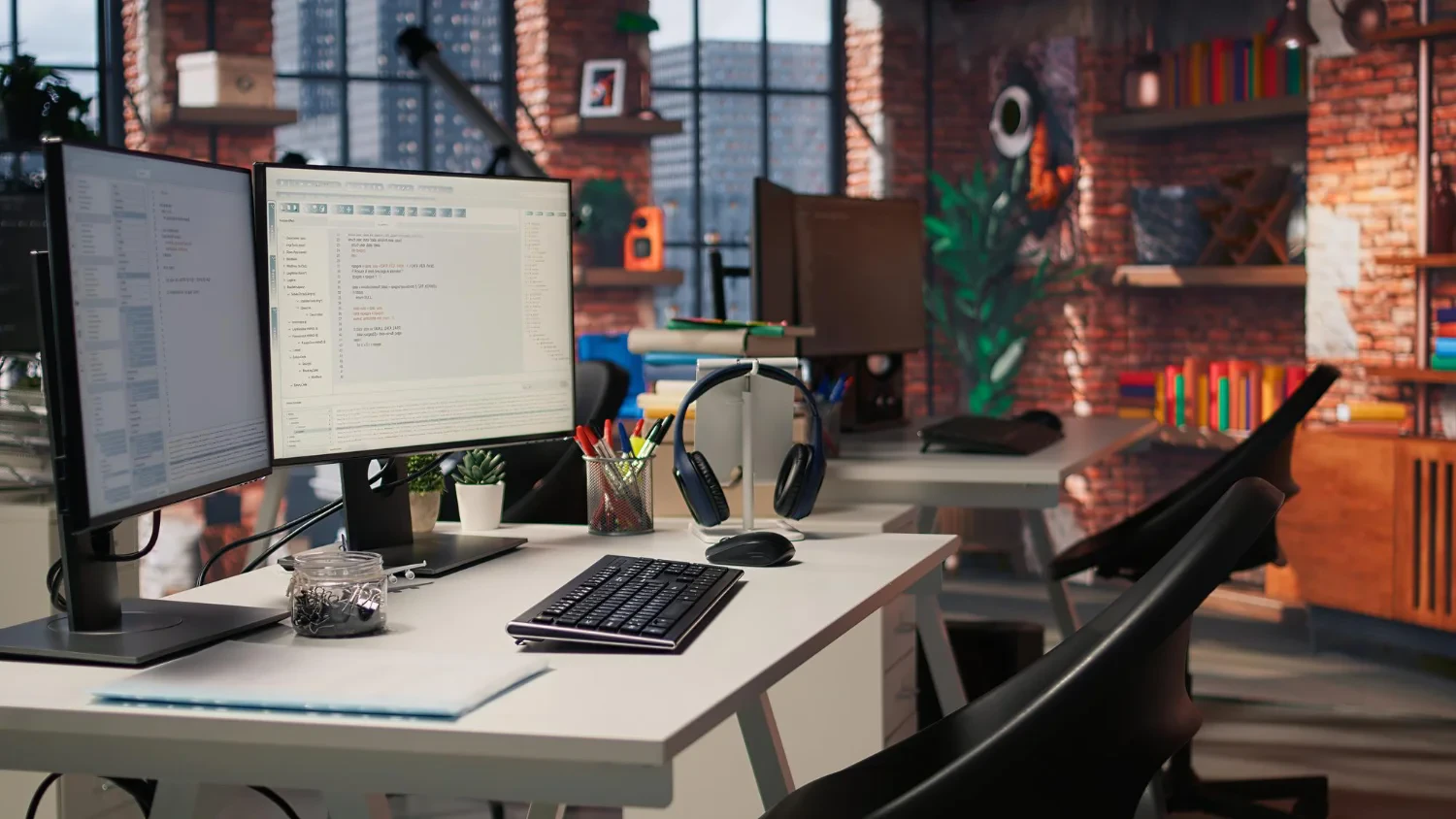
Ask for a photograph showing the whole workspace
Close-up photographs of a screen and chair can hide the details that determine whether the setup is practical.
Request an image showing the desk, chair, nearby sockets, window and surrounding floor space.
Look for room to place a keyboard and mouse while keeping the screen at a comfortable distance. Check whether the chair can move freely and whether another person would need to walk through your workspace.
Window placement matters too. Strong light behind you can complicate video calls, while light reflected directly in the display can make the screen difficult to use. Ask whether blinds or curtains are available if the photographs leave this unclear.
Check where your conversations will happen
A desk in an open living room may suit quiet individual work. It may be less suitable if another occupant needs to use the same room during confidential calls.
Ask where the workspace sits within the apartment and whether there is a door you can close. If daytime noise would affect your work, enquire about known building works or recurring noise rather than asking for an absolute promise of silence.
For a critical presentation shortly after arrival, allow time to test the connection, camera and audio beforehand. A fallback connection is useful only if you have checked that it works in that location.
Get the important details confirmed
Keep a short record of the equipment, connection information and any agreed setup arrangements.
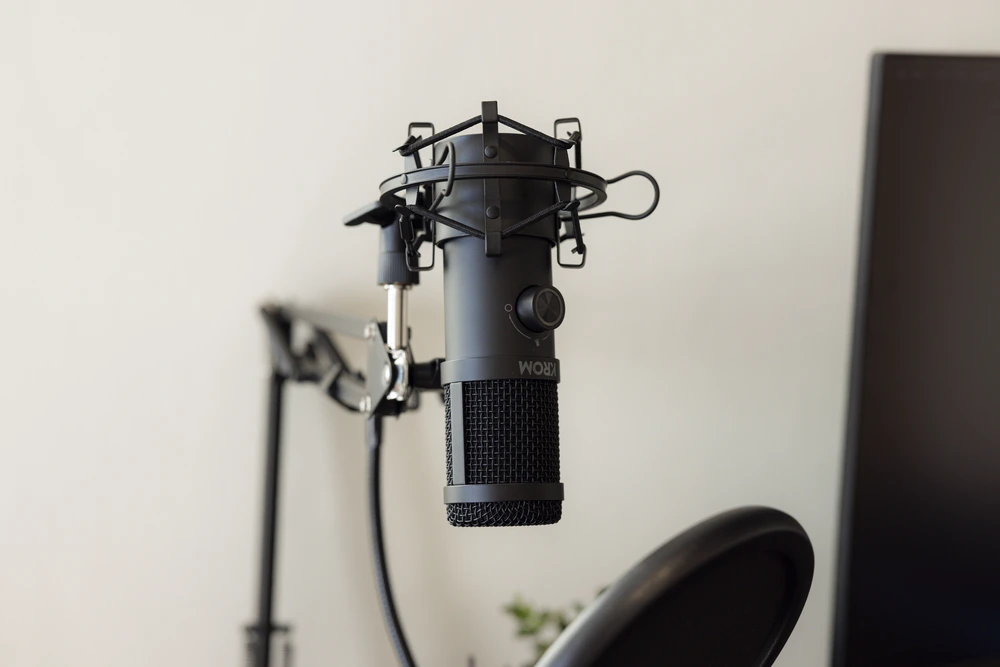
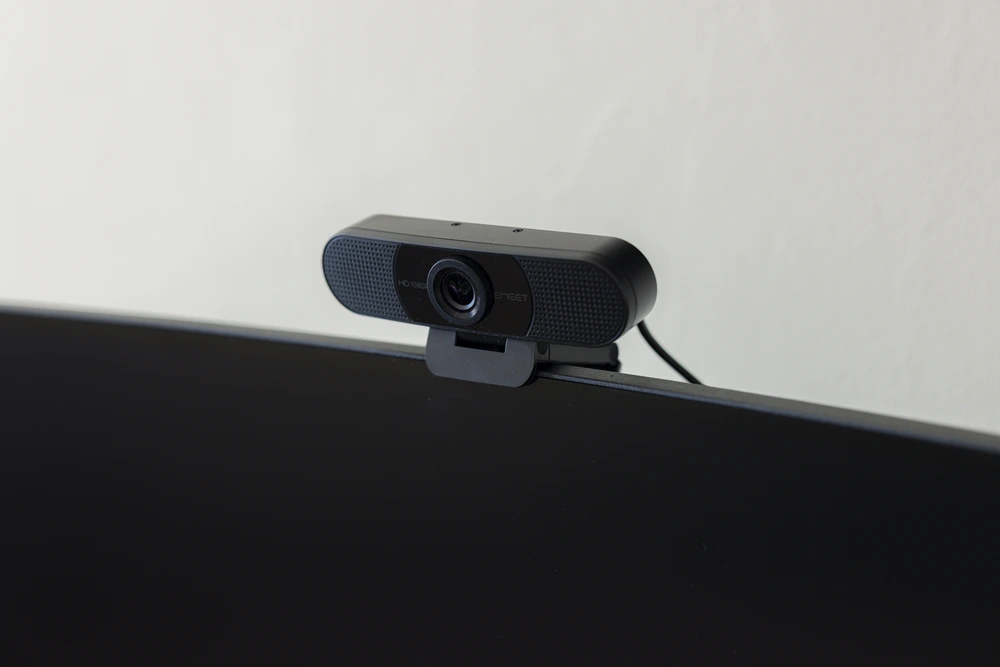
On RentRemote, optional workstation equipment requires written confirmation and invoicing before it forms part of the booking. Check the final configuration rather than assuming that every image on the website describes your chosen apartment.
When exploring RentRemote’s workstation options, use your work brief to identify what you need confirmed for the property and dates you are considering.
The aim is to arrive knowing how Monday morning will work: where you will sit, how your laptop will connect and where you will take your first call.